 does, how it works with your smart card, which one fits your provider, and how to fix common "no signal" and card errors.)
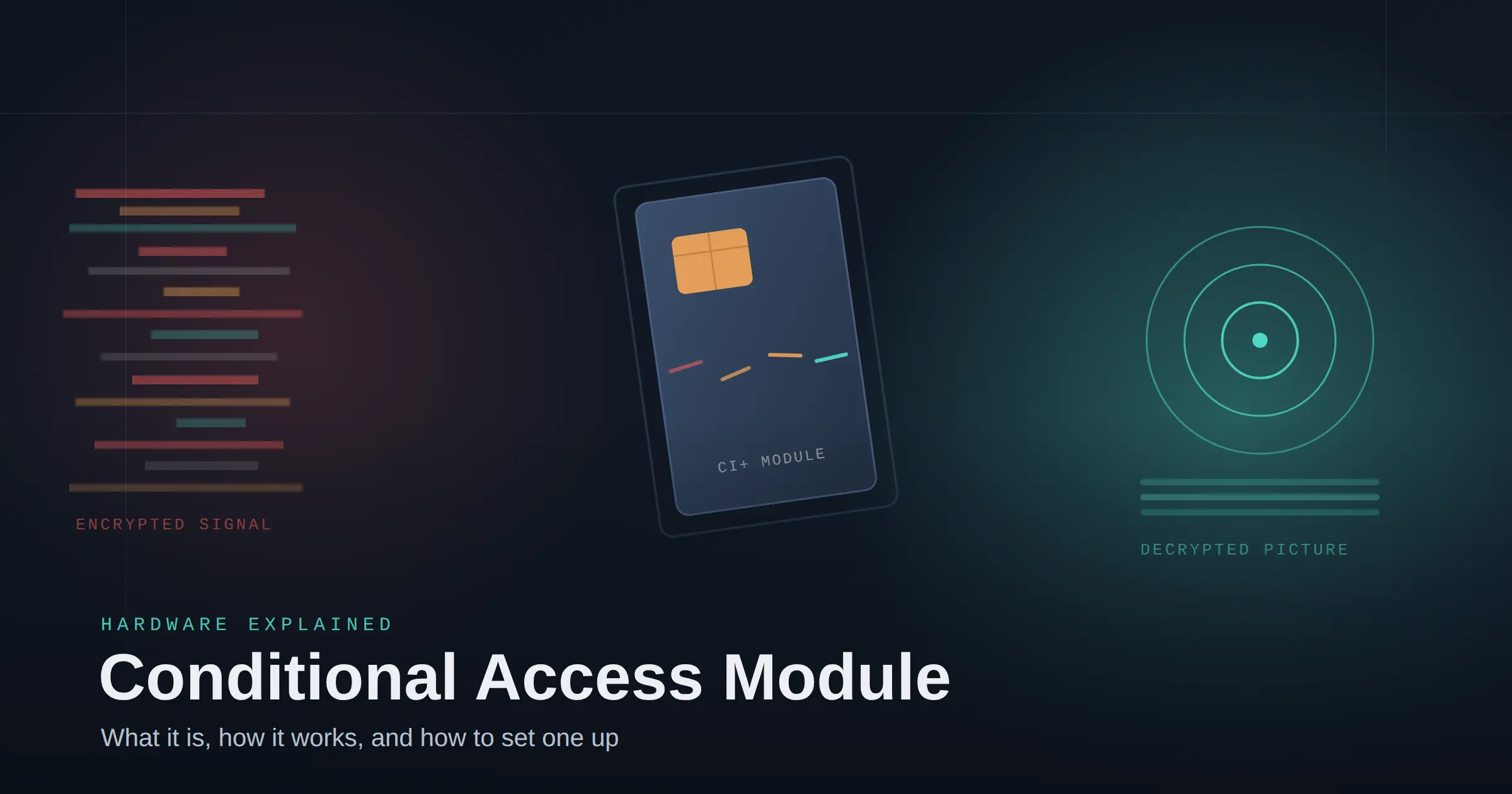
A conditional access module, or CAM, is a small hardware device that plugs into a TV or satellite receiver and decrypts pay-TV channels using a smart card. If your TV or receiver has a CI or CI+ slot and your provider tells you to insert a card, the CAM is the thing doing the actual work of turning a scrambled signal into a watchable picture.
And if you’re staring at a “This channel is scrambled” message right now, skip to Troubleshooting. If you’re buying your first CAM, go to Buying a CAM. Otherwise, keep reading — this covers everything in order.
What Is a Conditional Access Module?
A CAM is a piece of dedicated decryption hardware. It’s not the smart card itself, and it’s not your TV’s tuner — it sits between the two, translating an encrypted broadcast into something your screen can display.
A CAM by itself does nothing. It needs three things working together, and most explanations of this topic only mention one or two of them:
- The smart card — tied to your specific account, proving you’re a paying subscriber.
- The CAM — the hardware that reads the card and does the actual decryption.
- The host device — your TV or receiver, which has a CI or CI+ slot to physically accept the CAM.
SAM Not Working
Take any one of those away and you get a scrambled picture. This is why “my CAM isn’t working” almost always turns out to be a mismatch between one of these three parts, not a single faulty component — a distinction that matters a lot once you get to troubleshooting.
CAMs are most common with satellite (direct-broadcast satellite) services, but digital terrestrial pay-TV providers use them too. Physically, the most common format looks like a thick credit card — that’s the PC Card (PCMCIA) form factor that became the DVB standard for this kind of hardware. You’ll also see smaller SIM-card-sized versions, and newer CI+ 2.0-certified devices that use a USB dongle instead of a card slot at all.
Some receivers hide the CAM entirely. Certain satellite boxes build the decryption function directly into the hardware as flash memory, so there’s no visible card slot to speak of. If you’ve never seen a physical CAM on your equipment, that doesn’t mean your setup doesn’t use conditional access — it just means the manufacturer built it in rather than making it removable.
Pro Tip: If you’re troubleshooting and can’t find a CI slot anywhere on your device, check your manual before assuming something’s broken. Some hardware — DISH receivers are a known example — handles this internally with no external card at all.
How a Conditional Access Module Works
Once you understand the three-part system, the mechanics make sense.
Your provider broadcasts every channel — including the ones you haven’t paid for — as one continuous, encrypted stream. It’s cheaper and simpler for them to send everything to everyone and let the hardware sort out who’s allowed to watch, rather than customizing the signal per household.
The stream carries two kinds of messages baked into it: one describing what programs are covered by which subscription package, and one carrying the short-term keys needed to unscramble the video. Your CAM, working with your smart card, checks whether your account is authorized for that package against your provider’s conditional access system (CAS) — the broader encryption and licensing framework the CAM is built to work within. If it is, the CAM derives the decryption key — engineers call this a “control word” — and hands it back to your TV or receiver, which uses it to unscramble the picture in real time. For a deeper technical reference on the hardware itself, Wikipedia’s entry on conditional-access modules covers the standards history in more depth than most consumer guides attempt.
This is why the key changes constantly instead of being a single static password: if it didn’t rotate, anyone who intercepted it once could unlock the channel indefinitely. The CAM’s whole job is to keep re-deriving that key, continuously, for as long as you’re watching.
If you’re familiar with how streaming platforms like Netflix protect content with DRM, the conceptual parallel helps: both systems exist to make sure only paying accounts get usable video. The mechanics are different — broadcast conditional access predates streaming DRM by decades and works over a one-way signal rather than an internet connection — but the underlying goal is identical.
CAM vs CI vs CI+: Clearing Up the Confusion
These three terms get used interchangeably in retail listings and forum posts, and that looseness is what causes most buying mistakes. Precision here saves you a return shipment.
| Term | What It Actually Is |
|---|---|
| CAM | The physical decryption hardware itself (the card-shaped device) |
| CI (Common Interface) | The slot standard — the physical and logical interface that lets a CAM connect to a host device |
| CI+ | An enhanced version of CI that adds content-protection requirements between the CAM and the host |
A CI slot and a CI+ slot look identical. You cannot tell them apart by looking. The difference is in what the host device requires from the CAM before it’ll pass along protected content — CI+ was built specifically because broadcasters wanted stronger guarantees against copying premium and HD content, and a plain CI interface couldn’t provide that. The underlying standard is formally known as DVB-CI (part of the DVB Project’s broadcast specifications), with the interface itself defined in the CENELEC EN 50221 specification.
Here’s the practical consequence: a CI+-certified CAM will generally work in an older, plain CI slot, but a basic CI-only CAM may be refused by a provider that requires CI+ certification for its premium channels. If a retailer listing says “CI+ compatible,” that’s not marketing fluff — it’s telling you the CAM can satisfy the stricter content-protection handshake that some services demand.
How to check which slot type your TV has:
- Check the TV or receiver’s spec sheet or manual — the slot type is almost never printed on the device itself.
- Look at the model’s release year and product tier; CI+ became the more common requirement as HD and premium content protection needs increased, though exact adoption varies by manufacturer and market.
- If in doubt, buy a CI+-certified CAM — it’s the safer default, since CI+ hardware is generally backward-compatible with plain CI slots.
Where this stands today: Whether a given current-model smart TV includes a CI/CI+ slot at all varies significantly by manufacturer, region, and price tier, and this has been shifting as more viewers move to app-based streaming instead of broadcast tuners. If you’re shopping for a new TV specifically because you need CI+ support, check that model’s spec sheet directly rather than assuming — this is one of the few areas of TV hardware that has genuinely changed enough in recent years that older general guidance isn’t reliable.
CAM Compatibility: Matching a CAM to Your Provider
Most CAM guides stop at “insert card, watch TV” and never explain that CAMs aren’t universal. Each one is built to decrypt specific encryption systems, and different pay-TV providers use different ones. Buying a CAM without checking which system your provider uses is the number one reason people end up with a “no signal” screen after installation.
Some of the major encryption systems in use across different providers and regions include Irdeto, Nagravision, Viaccess, Mediaguard, Conax, and Cryptoworks, among others. A CAM built for one of these won’t decrypt a channel encrypted with a different one — full stop, regardless of whether the CAM physically fits your slot.
Single-system vs Multicrypt CAMs:
- Single-system CAMs support one encryption system only. They’re typically cheaper and are what most providers issue directly.
- Multicrypt CAMs — Dragon and Matrix are two well-known examples in this category — are built to handle more than one encryption system, which is useful if you subscribe to multiple services that don’t share a common system. This flexibility usually comes at a higher price.
Before you buy, confirm three things:
- Which encryption system your provider uses. Your provider’s support documentation or customer service should confirm this directly — don’t guess based on region alone, since providers can and do change systems.
- Whether your device needs CI or CI+. Covered above — CI+ is the safer default if uncertain.
- Whether you need a standard or professional CAM. Standard CAMs are built for a single TV. Professional CAMs are rack-mounted units designed to serve many TVs at once — the kind of setup used in hotels or hospitals. If you’re outfitting a single household, a professional CAM is the wrong product entirely, regardless of price.
Common Mistake: Assuming your provider’s encryption system based on what’s typical in your country or what a forum post from a few years ago said. Providers switch systems during contract renegotiations or security upgrades without much fanfare, and a CAM bought based on outdated regional assumptions is a CAM bought blind. Confirm it with your provider directly, every time — not from memory or habit.
Warning: Buying the wrong encryption-system CAM is not something you can “fix” with a firmware update or a different smart card. It’s a hardware mismatch. If a channel comes up scrambled immediately after installing a new CAM, mismatched encryption system is one of the first things to check — before assuming the hardware itself is defective.
Buying a CAM: What to Look For
Compatibility narrows down which category of CAM you need. What’s left is where to get it and how much to spend.
Check with your provider first. Many providers issue CAMs directly, sometimes at lower cost than third-party retail, and doing so guarantees compatibility without you having to verify encryption systems yourself. This is the fastest route for most people and worth ruling out before shopping retail.
If buying third-party, use this checklist:
- Confirmed encryption system matches your provider
- Confirmed CI or CI+ requirement for your device
- Confirmed standard (single-TV) vs. professional (multi-TV) format
- Checked the retailer’s return policy in case of an incompatibility you didn’t anticipate
- Compared physical form factor against your device’s slot (standard PC Card size, SIM-card size, or USB dongle for CI+ 2.0 devices)
A note on cost: Pricing varies by brand, encryption system, and whether the CAM is single-system or Multicrypt. Rather than quoting numbers that go stale, the practical guidance is this: a basic single-system CAM from a known brand is typically the most economical option, and Multicrypt CAMs cost more because they’re doing more. If a price looks unusually low for a Multicrypt claim, verify the listing carefully before buying — that’s a common spot for mismatched or outdated stock to show up in retail listings.
How to Insert and Set Up a CAM
The physical process takes under a minute. Get the order or orientation wrong, though, and your receiver will usually report a card error — which looks exactly like a defective card, and sends people chasing the wrong fix.
- Locate the CI or CI+ slot. On TVs, this is usually on the side or back panel, often behind a small flap. On satellite receivers, it’s typically on the front. Check your manual if you can’t find it — it’s rarely labeled clearly.
- Insert the smart card into the CAM first, before inserting the CAM into the TV. The card has a correct orientation — usually chip-side matching a printed diagram on the CAM itself. Forcing it in the wrong way can damage the contacts.
- Insert the CAM fully into the CI slot. A CAM that’s only partway in will often appear to be detected but won’t function correctly. Push until it’s firmly seated — you should feel it stop.
- Power on the device and allow time for activation. The receiver or TV needs to communicate with the provider’s system to confirm your subscription. This isn’t instant — give it several minutes before assuming something’s wrong.
- Tune to a subscribed channel to confirm decryption. If it displays cleanly, you’re done. If it’s still scrambled or shows an error, move to troubleshooting below.
Common Mistake: Inserting the smart card backward into the CAM. Most cards and CAMs have a small diagram showing correct orientation — check it before inserting, since a backward card is one of the most frequent causes of an “activation failed” message that has nothing to do with the CAM itself being faulty.
Troubleshooting a CAM: Common Problems and Fixes
Work through these in order. Each step rules out a specific cause before moving to the next, which is faster than guessing randomly.
| Symptom | Likely Cause | First Fix to Try |
|---|---|---|
| Channel shows “scrambled” immediately | Card orientation or CAM not fully seated | Remove and reinsert both, checking orientation |
| “Card error” or “No card detected” | CAM not communicating with the smart card | Reseat the card in the CAM; try a different CI slot if available |
| CAM detected but no channels work | Encryption system mismatch | Confirm the CAM matches your provider’s system |
| Some channels work, others don’t | Subscription package doesn’t cover those channels | Check your account’s package with your provider — this isn’t a hardware issue |
| Worked before, stopped suddenly | Provider-side card swap-out or expired activation | Contact your provider — this is often account-side, not device-side |
Step-by-step troubleshooting order:
- Check card orientation and full insertion. This fixes the majority of first-time setup failures.
- Reseat the CAM completely. Remove it fully, wait a few seconds, and reinsert.
- Confirm firmware is current on your TV or receiver. Outdated firmware occasionally fails to recognize newer CAM hardware correctly.
- Confirm provider-side activation. Newly issued cards sometimes need to be activated by the provider before they’ll work, independent of anything on your end.
- Test the CAM in another compatible device, if you have access to one. This isolates whether the fault is the CAM, the card, or the original device.
- Contact your provider or retailer if none of the above resolves it. At this point you’re likely dealing with a genuine hardware fault or an account-side issue that requires their system access to fix.
When to contact your provider vs. your retailer: If the issue is about subscription status, channel packages, or account-side activation, that’s your provider. If the issue is a physically defective CAM or smart card you purchased, that’s your retailer — most carry a warranty period for exactly this kind of fault.
Common Mistake: Buying a replacement CAM at the first sign of trouble. A new card that hasn’t been activated on the provider’s side yet, or a temporary card-error message during an update, both look identical to a genuinely dead CAM from the outside. Work through steps 1–4 above before spending money on a new unit — a good portion of “my CAM died” cases turn out to be account-side, not hardware.
CAM vs Set-Top Box vs Streaming Stick: Which Do You Need?
If you’re not sure a CAM is even the right solution, here’s the decision framework:
- Choose a CAM if your TV already has a built-in tuner and a CI/CI+ slot, and you want to avoid renting a full set-top box from your provider. This is the lowest-cost path if your hardware supports it.
- Choose a set-top box if your TV doesn’t have a CI+ slot, or if your provider requires proprietary hardware that isn’t available as a CAM (this is common with some U.S. satellite providers, where the conditional access hardware is built into the receiver rather than offered as a removable module).
- Choose a streaming device if you’re moving away from broadcast/satellite entirely in favor of app-based services — conditional access modules are specific to broadcast and satellite delivery and aren’t relevant to internet streaming.
The CAM route only makes sense if your existing TV already has the right slot. If it doesn’t, buying a CAM is not an option regardless of provider — you’d need a set-top box instead.
Pros and cons, side by side:
| Pros | Cons | |
|---|---|---|
| CAM | Lower ongoing cost, no extra box to find room for, uses your TV’s existing tuner and remote | Requires the right slot type, limited to broadcast/satellite content, encryption mismatches are a real risk |
| Set-top box | Guaranteed compatibility with your provider, works even if your TV has no CI/CI+ slot | Extra device, extra remote, often a rental fee |
| Streaming device | No broadcast hardware needed at all, works on any smart TV with internet | Doesn’t apply to broadcast/satellite conditional access content — different category of problem entirely |
Risks, Limitations, and Who Should (and Shouldn’t) Use a CAM
Security is only as good as the hardware. A CAM’s ability to keep unauthorized viewers out depends on how tamper-resistant its chip is. When that hardware protection is broken — which has happened historically to various encryption systems over the years — providers respond with a card swap-out, replacing the compromised CAMs and cards across their whole subscriber base. If you’re ever told your card or CAM needs replacing even though nothing seems wrong with it, this is usually why. It’s not something you did.
Grey-market and emulated CAMs carry real risk. Multicrypt CAMs and CAM emulators exist to let one device handle multiple encryption systems, and some of this hardware operates in a grey market that isn’t officially supported by broadcasters. Using unofficial or modified CAM hardware can violate your provider’s terms of service and may stop working without warning whenever a provider updates its security. This guide isn’t a recommendation to pursue that route — it’s a heads-up that if you’re offered a suspiciously cheap “universal” CAM, understand what you’re actually buying.
Who should use a CAM:
- You own a TV with a confirmed CI or CI+ slot.
- You’ve verified which encryption system your provider uses.
- You want to avoid a monthly set-top-box rental fee and are comfortable doing your own setup and basic troubleshooting.
Who shouldn’t bother:
- Your TV has no CI/CI+ slot — no CAM will fix that; you need different hardware entirely.
- Your provider ties your account to proprietary receiver hardware rather than an open CAM system (common with some U.S. satellite providers) — a third-party CAM won’t work regardless of specs.
- You’re setting up multiple TVs in a commercial space like a hotel — that’s a professional-CAM and licensing conversation with your provider, not a retail purchase.
FAQs
What is a conditional access module used for?
It decrypts pay-TV broadcasts so a paying subscriber’s TV or receiver can display channels that would otherwise appear scrambled.
Do I need a CAM for my smart TV?
Only if you want to watch encrypted broadcast or satellite channels directly through your TV’s built-in tuner instead of through a provider-supplied set-top box, and your TV has a CI or CI+ slot.
What’s the difference between CI and CI+?
CI is the base interface standard for connecting a CAM to a host device. CI+ adds stronger content-protection requirements, often required for premium or HD channels.
Can any CAM work with any provider?
No. A CAM must support the specific encryption system your provider uses. A CAM that works perfectly for one provider may show no signal at all with another.
How do I insert a CAM and smart card?
Insert the smart card into the CAM first, in the correct orientation, then insert the assembled CAM fully into your TV or receiver’s CI slot.
Why is my CAM showing “no signal” or a scrambled picture?
Most often it’s card orientation, a CAM not fully seated, or an encryption-system mismatch. Work through the troubleshooting table above in order.